Digital Compass for Android
- 3.7
- Rating
- 500.00K
- Installs
- Free
- Price
 Analysis by App-foxy
I like compass apps that stay focused on one job, and Digital Compass takes that approach seriously. It is a free Android navigation app built around showing direction clearly rather than trying to become a full map, trip planner, or outdoor activity platform. After using it as a quick orientation tool, I found its value comes less from a long feature list and more from how easily it fits into a repeatable habit: open it, hold the phone correctly, check the heading, and confirm that the reading makes sense before moving.
That simplicity makes it useful in situations where a traditional map feels excessive. I can imagine using it while leaving a large building, checking which way a trail begins, orienting a paper map, or working out whether a window or balcony faces a particular direction. It is also approachable for someone who has never used a digital compass before. The store summary presents it as a precise and accurate digital compass, but I would treat that as an aim rather than a reason to skip basic care. A phone compass is only as useful as its calibration, surroundings, and the way it is held.
Using Digital Compass as a dependable everyday baseline
I find a compass most useful when I treat it as a starting reference, not as a verdict about where to go. In this section, I’ll focus on making that quick check repeatable: noticing whether the heading settles, comparing it with a landmark, and deciding when another tool should take over. That baseline also makes the next section’s setup advice easier to apply.
You May Also Like

 Blood Strike: 2.5 Anniversary
Blood Strike’s Loadouts Turn Every Drop Into a Tactical Gamble
A close look at Blood Strike’s custom loadouts: how fast access to signature weapons reshapes its battle royale rhythm, rewards preparation, and narrows the gap between fights.

 Pandora - Music & Podcasts
Pandora’s Music Is Easy to Start, but Harder to Recover
Pandora’s strength is its low-effort path from a seed to a station. Its weak spot is how much confidence it asks you to place in connection, setup, and quiet recovery.

 8 Ball Pool
 Is Built on Rivalries, Rematches, and Routine
A close look at the rivalries, rematches, shared routines, and unanswered safety questions that turn a quick pool match into a persistent mobile community.

 Samsung Music
’s Quiet Strength Is Playing What You Already Own
Its reach comes less from spectacle than from dependable access to a personal library. That simplicity is both the app’s strongest retention engine and its ceiling.

 AccuWeather: Weather Radar
AccuWeather Review: A Quick, Clear Forecast for Everyday Decisions
For everyday plans, the best forecast is the one you can understand quickly. AccuWeather makes rain timing, radar, and local conditions easy to act on, with a few trade-offs.

 Hill Climb Racing
Why Hill Climb Racing Still Turns Crashes Into One More Run
A tiny car, a bumpy hill and one more upgrade: Hill Climb Racing keeps resurfacing because its simple chaos makes every near-miss feel personal.
More From Our News Desk



The simple workflow that makes the app useful
My normal starting routine is deliberately boring. I open the app while standing still, hold the phone flat, and wait for the direction display to settle. I do not begin walking immediately after opening it. Instead, I compare the indicated direction with something I already understand, such as the position of the sun, a known road, or the orientation of a building. This small check helps catch a bad reading before it affects the rest of the journey.
The app belongs to the Maps & Navigation category, but it should not be confused with a navigation service that gives turn-by-turn instructions. It is better understood as a directional instrument. It can answer “which way am I facing?” far more directly than a map can, while a map remains the better choice for finding an address, selecting a route, checking traffic, or estimating travel time.
A realistic example is arriving at a park with several paths that look similar. I might open Digital Compass, identify the general direction of the path I want, and then use visible landmarks to keep myself oriented. I would not expect the app to tell me the path name or guide me around a closed section. That division of labor is important: the compass helps with orientation, while a map or local signs handle location details.
For a first-time user, the most important habit is to keep the phone away from obvious sources of magnetic interference. A car dashboard, a speaker, a magnetic phone mount, or a metal table can make a compass behave strangely. If the direction jumps while the phone is stationary, I move away from the object and test again. The fastest accuracy improvement is often changing the environment, not repeatedly tapping the screen.
What the app is genuinely good at
Digital Compass is strongest when I need a quick directional reference with almost no preparation. It is handy for aligning a paper map, finding the approximate direction of a sunrise or sunset, checking the orientation of a campsite, or explaining directions to someone using cardinal points instead of street names. It also works well as a learning tool because the relationship between the phone’s movement and the displayed heading is immediate.
Its free price removes the usual hesitation around installing a specialist utility for occasional use. The app is suitable for Everyone, which matches its straightforward purpose and makes it reasonable for families, students, travelers, and casual outdoor users. The current version is 1.9, and the minimum requirement is Android 6.0, so it can suit a broad range of Android phones rather than only recent models.
The developer is listed as Photo and video apps, an unusual label for a compass utility. I would not read that label as evidence that the app is connected to a camera workflow or that it offers photography tools. For deciding whether to install it, the practical point is simply that this is a compact directional app, not a broad navigation suite.
Settings and phone preparation worth checking
Before depending on the reading, I check the phone’s basic sensor behavior. I remove it from a magnetic case if the case contains a clasp or ring, place it flat, and rotate it slowly if the heading seems inconsistent. Some phones need a gentle figure-eight motion to refresh their magnetic sensor, although the exact response depends on the device. I use that motion as a troubleshooting step rather than assuming it guarantees perfect calibration.
I also check whether the phone is being held in the same orientation I expect. If I hold it upright while reading a flat compass display, the result may not be as intuitive as when the device is level. This is an easy mistake because the app opens quickly and encourages an immediate glance. A few seconds spent holding it consistently can be more valuable than repeatedly reopening it.
There is another useful distinction between a stable reading and a believable reading. A compass can remain steady while pointing incorrectly if the phone is near interference or if the sensor needs attention. That is why I prefer a two-part check: first look for a calm display, then turn slowly and see whether the direction changes smoothly. Sudden jumps or an unwillingness to follow the phone’s rotation are signs to troubleshoot before trusting it.
For outdoor use, I prepare the phone before leaving rather than waiting until I am already confused. I open the app in an open area, take a reference reading, and note a landmark in the direction I need. This creates a simple mental anchor. If the display later becomes unstable under trees, beside a fence, or near a vehicle, I can move to a clearer spot and compare the new reading with that anchor.
Shortcuts and repeatable patterns for faster checks
The app becomes more useful when I give it a role in a routine instead of treating it as something I open only after losing my bearings. For example, when walking from a transit stop to an unfamiliar venue, I can check the general direction before starting and again after crossing a major intersection. I do not need to stare at the compass continuously. Periodic checks reduce distraction and make the tool a supplement to landmarks rather than a replacement for awareness.
Another efficient pattern is to combine the compass with a saved mental description. I might tell myself, “the entrance is generally east from the fountain, then I follow the signs.” Digital Compass supplies the first directional reference, while the environment supplies the detail. This is faster than trying to convert every movement into a precise heading, and it avoids the common mistake of treating a compass as a route planner.
I also find it useful when explaining orientation indoors. In a large building, I can stand near an entrance, identify the direction of a corridor, and use that information to describe the layout to another person. The result is not a floor plan, but it can make verbal instructions clearer when left and right become confusing after several turns.
For paper-map users, the best workflow is to align the map once, then stop checking every few seconds. I place the map so its north direction matches the phone’s north indication, identify the route or landmark, and then use the landscape to continue. This prevents the phone from becoming a crutch and keeps the map readable. It is a small but meaningful advantage over relying entirely on a moving digital map.
Where experienced use still meets hard limits
The word “precise” should not make anyone treat this app as professional surveying equipment. A phone compass is affected by the device’s magnetometer, nearby materials, how the phone is held, and the local environment. Digital Compass can be a helpful orientation aid, but I would not use it alone for safety-critical navigation, exact land measurement, marine navigation, or any task where a wrong heading could create serious consequences.
It is also not a substitute for knowing where you are. A compass gives direction, not position. If I know I need to travel north but have no idea which path, road, or trail leads there, the app cannot solve that problem. A map, signs, a route planner, or local guidance may be more appropriate. This is the main trade-off compared with full navigation apps: Digital Compass is quicker and less cluttered, but it answers a narrower question.
Compared with a physical compass, the phone version is convenient because it is already in my pocket and can be easier to read. The physical instrument has advantages when the phone battery is low, the environment is harsh, or magnetic interference around the phone is a concern. Compared with a map application, Digital Compass feels calmer and more direct, but it lacks the geographic context that makes maps powerful.
Battery use is not the only practical consideration. Looking down at a phone while walking can reduce awareness, especially near roads, stairs, or uneven ground. I use the app while stopped, take the heading I need, and put the phone away. That habit is safer and usually produces a better reading than trying to follow a constantly changing display while moving.
Who should install it and who should choose something else
I would recommend Digital Compass to Android users who want a focused directional tool for occasional travel, outdoor orientation, education, home projects, or everyday curiosity. It is particularly suitable for someone who finds full map apps overwhelming and only needs a clear answer about direction. Its free availability and Everyone content rating make the decision easy for casual users.
I would choose a different option for turn-by-turn driving, public-transit planning, trail route recording, offline topographic navigation, or precise professional work. Those needs require context and tools that a standalone compass is not designed to provide. Even for hiking, I would pair it with a proper map and a sensible safety plan rather than relying on the heading alone.
The app has earned an average rating of 3.8 from around 180 ratings, with 21 written reviews, and it has passed 100 thousand installs. Those figures suggest a modest but real user base rather than a dominant navigation platform. I see that as consistent with its specialized purpose: it does not need to replace a major map service to be useful, but its value depends on whether a simple compass is actually what the user needs.
My verdict after building a habit around it
Digital Compass works best when I keep my expectations precise. It is a focused Android compass that can make orientation quicker, especially when I use it with good habits: hold the phone level, avoid magnetic interference, verify an unusual reading, and use landmarks or maps for context. Those steps are not complicated, but they separate a dependable quick check from blind trust in a sensor.
I appreciate that the app does not need to compete with a full navigation suite to have a place on my phone. Its strongest quality is immediacy. When I want a direction rather than a route, opening a compact compass is more convenient than loading a map and interpreting a larger interface. The trade-off is equally clear: it cannot tell me where I am, where a road goes, or whether a route is safe.
My final recommendation is therefore conditional but positive. If you want a free, simple way to check cardinal direction on an Android phone, Digital Compass is worth trying as a lightweight orientation companion. Use it as one part of a repeatable navigation habit, not as a replacement for maps, signs, physical compasses, or common sense. With that understanding, it is a practical little tool for the moments when knowing which way is north is exactly enough.
FAQs for Digital Compass for Android
01What features does the Digital Compass app offer?
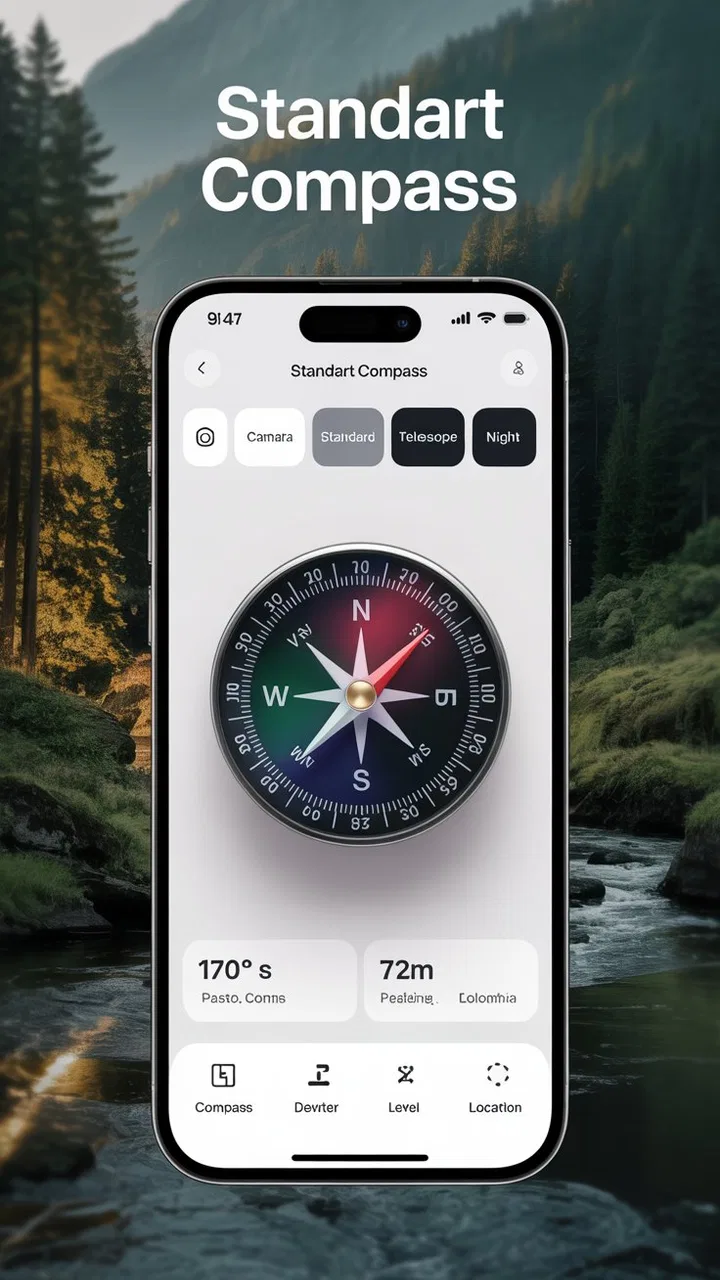
The Digital Compass app provides accurate directional guidance using your device’s built-in sensors. It offers features like magnetic and true north readings, GPS integration, altitude tracking, and even a weather forecast option. Additionally, it includes customization for themes and interface layouts to enhance user experience.
02How accurate is the Digital Compass app compared to a traditional compass?
The accuracy of the Digital Compass app largely depends on the quality and calibration of your device’s sensors. While it generally provides precise readings, external factors like magnetic interference can affect its performance. Regularly calibrating your device and ensuring it’s free from nearby magnetic objects can help maintain accuracy.
03Is the Digital Compass app compatible with all Android devices?
The Digital Compass app is designed to be compatible with most Android devices that have built-in magnetometers and GPS capabilities. However, users should check the app’s requirements on the Google Play Store, as some older or budget models might not support all features effectively.
04Are there any in-app purchases or ads in the Digital Compass app?
Yes, the Digital Compass app may include ads and offers optional in-app purchases. These purchases typically provide an ad-free experience and unlock additional features or customization options. Users can choose to continue with the free version or upgrade based on their preferences and needs.
05How can I ensure the best performance from the Digital Compass app?
To ensure optimal performance from the Digital Compass app, regularly calibrate your device’s sensors by following the app’s instructions. Keep your device away from magnetic interference and update the app frequently to benefit from the latest improvements and bug fixes provided by the developers.
Pros
- Accurate and reliable direction finding.
- User-friendly interface with clear graphics.
- Works offline without internet connection.
- Includes additional tools like a speedometer.
- Lightweight app with minimal storage use.
Cons
- Ads can be intrusive during use.
- Limited customization options available.
- May drain battery quickly on older devices.
- Not all features available in free version.
- Requires permission for location services.

Digital Compass for Android
Gallery